So, I wanted to build a site and decided to use some AI-powered helpers plus a hosting tool. Here are the five tools I ended up using: GitHub Copilot, ChatGPT, Midjourney, Figma Make (AI design), and Netlify (hosting). Below I explain each and share a funny mistake or two. 😅
1. GitHub Copilot (AI Code Assistant)
What it is: Copilot is an AI “pair programmer” right in your code editor. As I type, it suggests code completions.
How I used it: When writing JavaScript functions and HTML, I typed a comment like // create submit button and Copilot offered a chunk of code. It handled basic things (like form markup or loop structures).
Pros: Copilot speeds up coding a lot. It nails boilerplate and common patterns, saving me from typing everything myself. Installation was easy (just a plugin), and it works in VS Code & others.
Cons: It can hallucinate stuff. For example, I once wrote a query and Copilot invented a database field that didn’t exist. It also sometimes uses outdated methods (it used substr() instead of slice() once). So I always double-check its suggestions.
Goofy Mistake: I asked it to make a login form. It did, but left a TODO comment in the code! (Almost forgot to remove it before pushing… glad I caught that!)
2. ChatGPT (AI Content & Q/A)
What it is: ChatGPT is an AI chatbot by OpenAI. It can draft text and answer questions. I used it to generate content and solve coding puzzles.
How I used it: I wrote prompts like “Explain how CSS grid works” or “Write a paragraph about AI tools” and it spit out a draft. I also asked it to write some HTML/CSS snippets. It “spit out something decent” almost instantly. (That phrase should be “spit out,” by the way – learned that from feedback!)
Pros: It’s super easy to use (web chat). It quickly generates human-like text for blogs or captions, and even helped with formatting tags. If I got stuck on a concept, ChatGPT usually explained it simply. It has a free tier, and Plus is $20/month for faster responses.
Cons: Its “brain” is fixed to 2021 knowledge, so it might give outdated info. For example, it thought a certain CSS feature was still in draft (it’s been standard for years). Its answers can also be generic. I had to rewrite some of its sentences to fit my style.
Goofy Mistake: I once asked ChatGPT to write a “fun website intro” and it told me Michael Jackson had a Moonwalk patent date (it did not!). Oops – clearly a hallucination. Lesson: Always fact-check.
3. Midjourney (AI Image Generator)
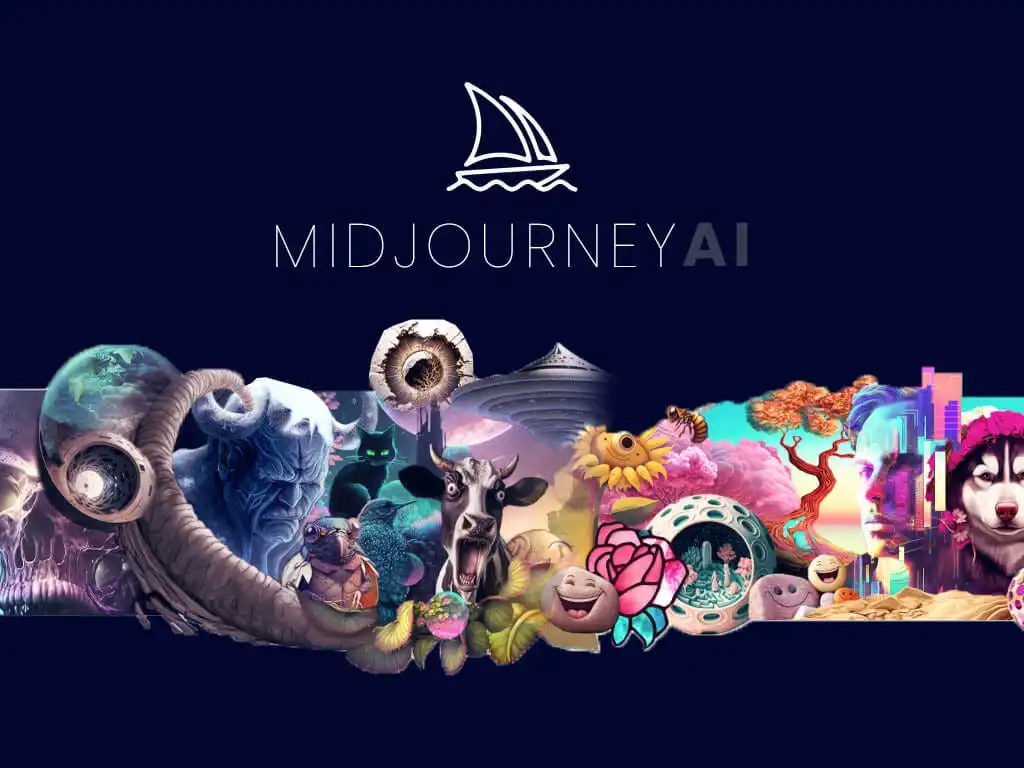
What it is: Midjourney is an AI that creates art from text prompts. (Yes, I said “cat with five legs” on a whim, and it actually delivered a literal five-legged cat image!)
How I used it: To make illustrations for the site. For instance, I needed a banner image, so I prompted “sunset over mountains in pastel style.” It gave me a dreamy scenery that I then fine-tuned. I also asked it to make some icons (like a waving robot for my About page).
Pros: The images look fantastic and unique. It’s especially good with abstract or nature scenes. Great for inspiration when I’m not an artist.
Cons: It messes up details. Human features especially are glitchy (extra fingers, weird eyes). Once it gave me a “handshake” picture, and the hands merged together strangely. So I stick to scenes or simple objects with it. Also, using it requires learning good prompt wording, which took trial and error.
Goofy Mistake: One prompt was “a guide dog in a business suit.” The result had the dog’s face on its chest and tiny suit for its paw—delightfully bizarre. 😂
4. Figma Make (AI Design Tool)
What it is: Part of Figma (a UI design app). You describe a layout, and it generates a wireframe for you. It’s like saying “I want a teal signup page” and it draws the draft.
How I used it: To sketch the site’s design. I said “homepage with navigation bar and three columns.” Figma made a page mockup which I then edited (colors, text, etc.). It also auto-renamed layers and aligned elements, which is neat.
Pros: Speeds up initial design ideas, even if you’re not a pro designer. No coding needed to prototype.
Cons: Output can be generic. For example, I told it to “add a submit button” and it put it in a weird spot until I nudged it. You still need to tweak the design. Also, some features (like interactive animations) aren’t built yet.
Goofy Mistake: I asked Figma to “make a contact form.” It did – but the placeholder text was “asdf” because of a typo in my prompt. Had to laugh and fix it.
5. Netlify (Web Hosting/Deployment)
What it is: Netlify is where I put the finished site online. Technically it’s not an AI tool but a hosting/CD platform. After coding, I pushed to GitHub and Netlify automatically built and published the site live.
How I used it: Very simple: connect my repo in Netlify, and it handled everything. I got a live URL instantly. I configured my domain and SSL (done for me). Every git push created a preview, so I could see changes before merging.
Pros:Zero hassle deployment. Free forever for small projects. Automatic builds on git push, instant rollbacks if something breaks. Built-in features (forms, functions) without extra setup.
Cons: Only works well for static sites (doesn’t run a full server). I needed a separate API for comments. The free plan has limits (bandwidth, build time), but it was fine for my demo site.
Goofy Mistake: I mis-typed the build command once, and Netlify’s logs showed a 404 error. Saved me from launching a broken page—good catch!
Summing Up: Using these tools, I pieced together a website much faster than by hand. Copilot and ChatGPT handled coding and writing, Figma and Midjourney handled design and images, and Netlify got it online. It’s not perfect (AI can slip up!), but it’s fun and efficient. Remember: AI is my assistant, not a replacement – I still review and fix everything. For example, I changed “sticked” to “stuck” in one sentence because, well, humans spot odd grammar better than a bot!